Your Stream Deck runs the show.
Every overlay in your Kue workspace — nameplates, the topic card, the ticker, merch, your CTA — can now be driven from physical keys. No browser tab open, no clicking during a segment. Press a key; two seconds later it's on air. This guide takes you from nothing to a full deck in about twenty minutes.
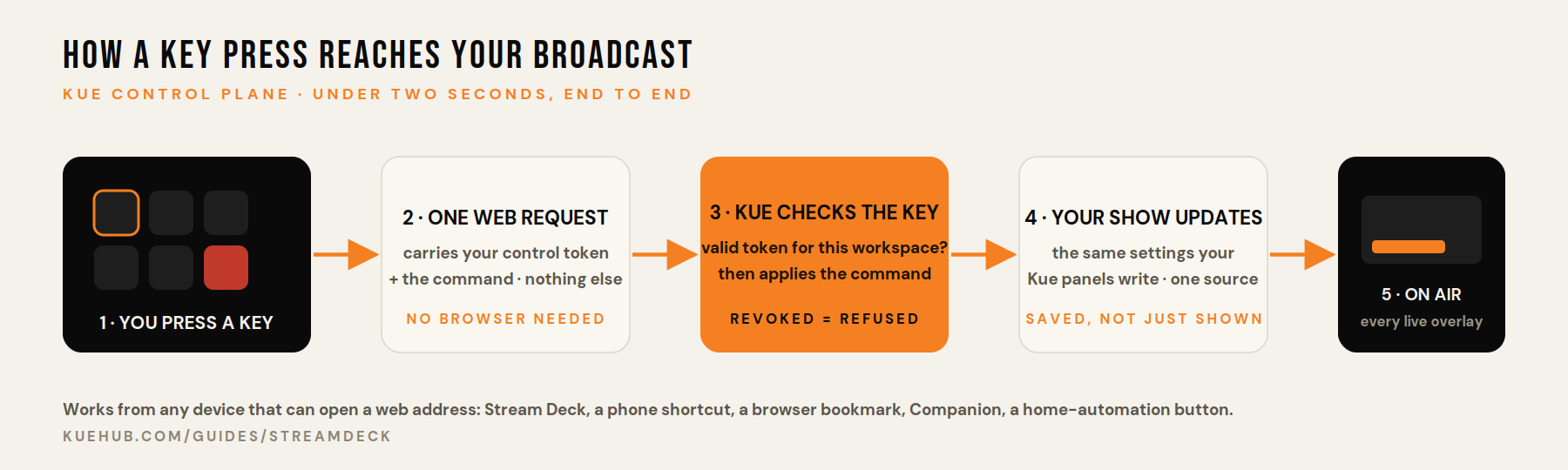
A control token + a web address per key
Your workspace mints tokens — one per device. Each key on your deck opens a web address that carries the token and a command. Kue checks the token and updates your show. Your live overlays pick it up on their own.
Any device that can open a URL
A Stream Deck with its built-in Website action — no plugin. Also works from a phone shortcut, a browser bookmark, Bitfocus Companion, or a smart-home button. If it can open a web address, it can run your show.
Mint a token for your device
In Kue, on the left rail: 🎛 Remote control (Stream Deck). Type a label that names the device — Stream Deck — Studio — and hit + New token. It appears in the list with a Copy button.
One token per device. When you retire a device or a token leaks, Revoke kills only that one — every other key keeps working. Revoked tokens can then be deleted to keep the list clean.
Anyone holding a token can control your overlays. Don't screenshot the panel into a post, don't share key URLs in a group chat. If one gets out, revoke it — thirty seconds — and mint a new one.
Build the key's web address
Below the token list is the Key URL builder. Pick the token, pick a command, fill in the value if it asks for one (a co-host's name, a topic, a merch item number), and hit Copy. That's the whole address — it already contains your token and the show you're working in.
Nothing here to type by hand, and nothing to look up. Every key you'll build starts in this builder.
Put it on a key
- Open the Stream Deck app → actions list on the right → System → drag Website onto an empty key.
- Title: whatever your hand should read — L3: Maya, TOPIC ›, PANIC.
- URL: paste the address from the builder.
- Check GET request in background. This is the one that matters: unchecked, every press opens a browser tab; checked, the key fires silently.
That checkbox didn't get checked. The tab also shows you exactly what Kue answered — a useful trick when a key seems dead: uncheck it once, press, read the reply, re-check it.
Use the live overlay links in your switcher
Keys change what Kue saves; only overlays that read from Kue will reflect it. In Ecamm, OBS or vMix, each overlay must be the live link from its Kue panel — the address that starts with …/#live=. Those refresh themselves every two seconds; nothing else to configure.
Two overlays are new with this release: the Topic card (its link sits under the ticker's, in the Ticker panel) and the merch rotator's live link (in the Merch panel — replaces the old copy-a-new-link-every-edit address).
The two keys to build first
TOPIC: NEXT. Each press pops the next talking point from your show brief onto the topic card, in order, wrapping at the end — your prep, on screen, one key. Add TOPIC: HIDE beside it.
PANIC. One press clears everything at once: ticker, topic card, merch, CTA, nameplate. Put it on the bottom-right corner, alone, where your hand finds it without looking. You'll go weeks without touching it. The night you need it, it's the best key on the deck.
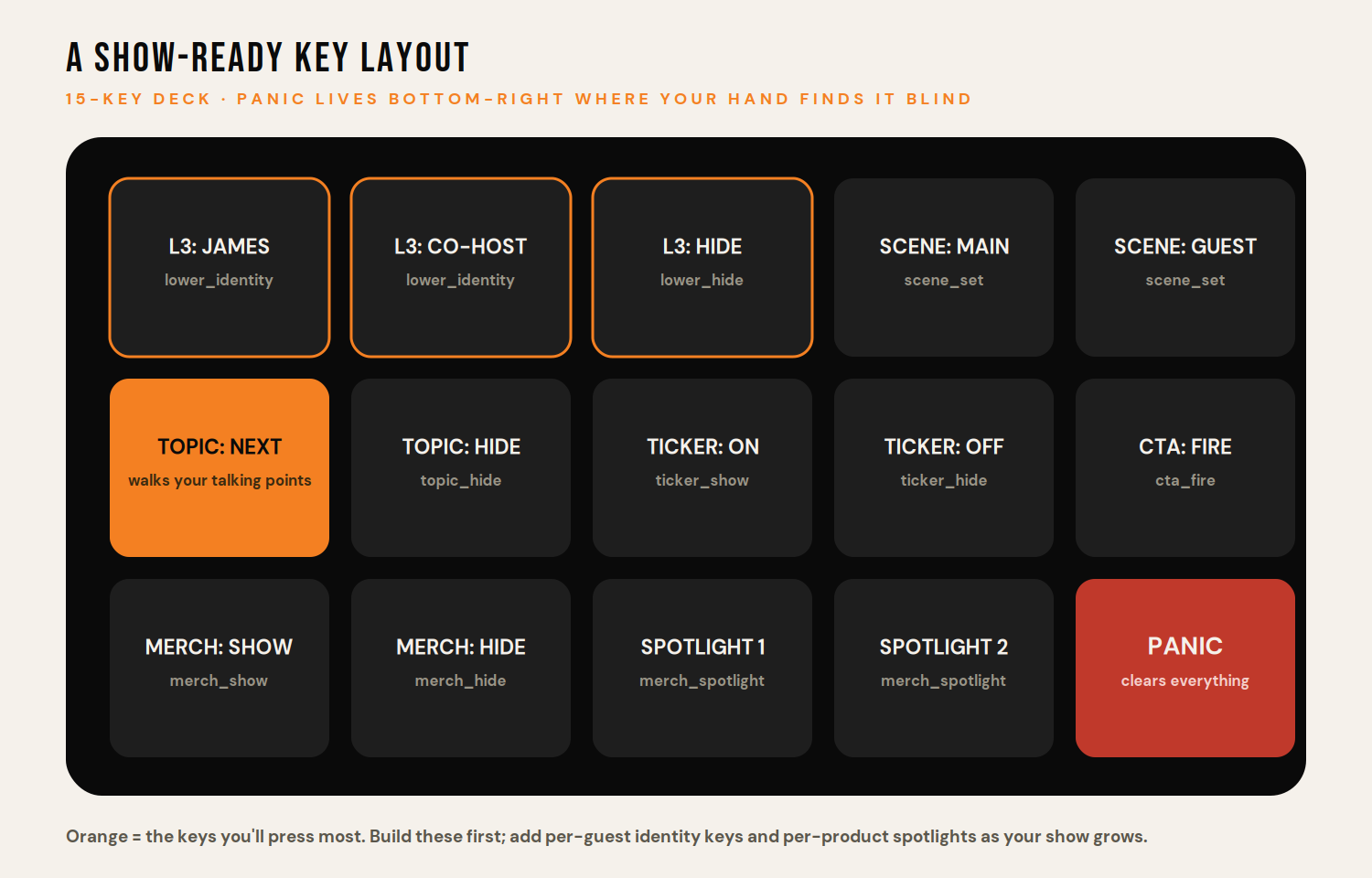
| Command | What it does | Value |
|---|---|---|
| lower_identity | Puts a saved identity on the nameplate | the person's name as saved |
| lower_hide | Clears the nameplate | — |
| topic_next | Pops the next talking point from your brief | — |
| topic_show | Pops a custom topic you type | the text (and an optional sub-line) |
| topic_hide | Dismisses the topic card | — |
| ticker_show / ticker_hide | Fades the ticker in or out | — |
| ticker_inject | Adds a line to the ticker on the spot | the text |
| merch_show / merch_hide | Shows or hides the rotator | — |
| merch_spotlight | Jumps the rotator to one product | the item number (top of your list = 1) |
| cta_fire / cta_hide | Fires the CTA animation, or stops it | — |
| scene_set | Switches the active scene | the scene name |
| panic | Clears every overlay at once | — |
Three usual causes, in order: the overlay you're watching isn't the live link (step 04); the show is already in that state — pressing L3: Maya when Maya's already on the plate is a correct no-op; or the token was revoked. The Remote control panel shows each token's last used time — if it moved when you pressed, Kue heard you and the overlay side is where to look.